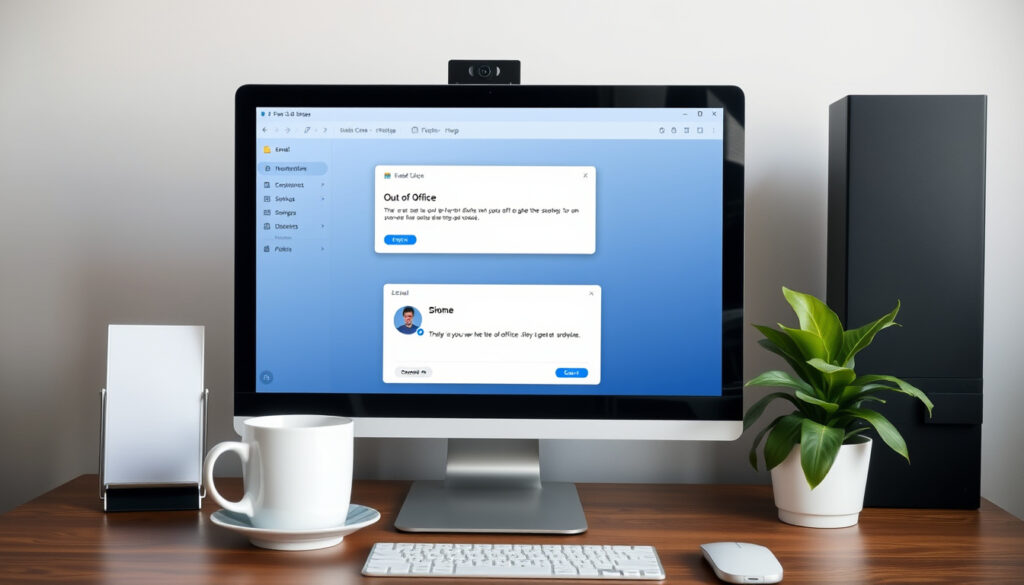
Out of Office Message Outlook: Setup, Writing Tips & Templates
Setting up an out of office message in Outlook is one of those tasks that feels like a quick checkbox — until you realise the reply you just wrote sounds robotic or leaves colleagues guessing. A well-crafted automatic reply does more than announce your absence; it keeps professional relationships running smoothly while you’re away.
Supported Platforms: Windows, Mac, Web, Mobile ·
Reply Types: Internal and External ·
Scheduling: Date range with start and end time
Quick Snapshot
- Automatic replies can be scheduled for a specific date range (Microsoft Support)
- Separate internal and external messages are supported (Microsoft Support)
- Formatting (bold, colour, alignment) is available in the compose window (Microsoft Support)
- How to set recurring weekly schedules without Power Automate
- Character limit in automatic reply fields — no official cap published
- Automatic replies can be set to start and end on exact dates and times (Microsoft Support)
- Customise messages for internal and external recipients based on audience
- Test by sending an email to yourself from an external account
Here is a quick reference table that distills the key setup details into a glanceable format.
| Detail | Value |
|---|---|
| Default Outlook Version | Microsoft 365 |
| Location of Feature | File > Automatic Replies (Windows) |
| Max Reply Length | No explicit limit, but best to keep under 200 characters for readability (Indeed career guide) |
How Do I Set Up an Out of Office Message in Outlook?
Accessing Automatic Replies in the Desktop App
The classic Outlook app for Windows gives you the most control. Open Outlook, click the File tab, then select Automatic Replies (Out of Office). In the dialog, check Send automatic replies. You can optionally check Only send during this time range and set a start and end date (Microsoft Support).
Scheduling prevents you from forgetting to turn off replies when you return — a small step that avoids embarrassing double-communications.
Setting Up Replies on Outlook Web App
In Outlook on the web (browser), click the gear icon (Settings) > Mail > Automatic replies. Turn on Send automatic replies and, if desired, check Send replies only during a time period (Microsoft Learn Q&A). The web app also lets you optionally block the calendar and automatically decline meetings during your absence.
Scheduling a Time Period for Replies
Whether you’re in the desktop app or the web version, setting a time range is straightforward. Specify the start and end date, and optionally the time. Once the end date passes, Outlook automatically disables the reply (Microsoft Support training page).
Be precise with end-of-day timing: Outlook uses your local time zone, so an end time of 5:00 PM means replies stop at that moment — not at midnight.
Sending Different Replies to Internal and External Senders
Inside the Automatic Replies dialog, you’ll see two tabs: Inside My Organization and Outside My Organization. Compose a separate message for each audience. For external, you can also choose whether to reply only to people in your contacts (Microsoft Learn Q&A).
What Do I Write in an Out of Office Message in Outlook?
Essential Elements of an Out of Office Message
- Your absence dates (start and return date) (Indeed career guide)
- When the sender can expect a response
- An alternative contact for urgent matters
- A brief, courteous closing
Tone and Length Considerations
Keep it professional but warm. A message longer than 200 characters can feel heavy. Use short paragraphs. Avoid jokes or overly casual language unless you’re certain of your audience (Indeed career guide).
Including Contact Information for Urgent Matters
Provide the name, role, and email or phone number of the person covering for you. If no single person, offer a shared mailbox or department contact. This prevents senders from feeling stranded (Zapier blog).
The catch: Listing a specific contact means that person must be aware of the arrangement — otherwise the loop breaks.
What Is an Example of an Out of Office Message?
Short and Simple Example
“I’m out of the office until [date] with limited access to email. I’ll respond when I return. For urgent matters, please contact [name] at [email].” This direct style works for short leaves and internal teams (Indeed career guide).
Professional Example for Client Communication
“Thank you for your email. I am currently out of the office and will return on [date]. During my absence, please direct any urgent inquiries to [contact name] at [email]. I will respond to your message as soon as possible after my return.”
Example for Extended Leave
“I am on leave until [date]. I will have very limited access to email. Please contact [department] at [email or phone] for any immediate needs. All other messages will be addressed after my return. Thank you for your understanding.” This gives a fuller picture and sets expectations for slow response.
Why this matters: A clear example saves you from starting from scratch — just drop in your dates and contact, and you’re ready.
How to Professionally Say “Out of Office”?
Polite Phrases to Indicate Absence
Use phrases like “I’m currently out of the office” or “I will be out of the office from [date] through [date]”. Avoid vague stabs like “I’m not here” or “gone”. Specific dates convey reliability (Indeed career guide).
Avoiding Overly Casual Language
Even in a casual workplace, an out-of-office message is often the first point of contact for a new client or partner. Skip slang, emojis, and abbreviations like “BRB” or “TTYL”. Stick to full sentences.
Handling Urgent Requests
If your work requires immediate escalation, explicitly say: “If this is urgent, please contact [name] at [details].” This reduces frustration and ensures continuity.
The trade-off: Too many instructions can overwhelm the reader; keep the call to action clear and single.
What Is the Best Formal Out of Office Message?
Formal Message Template
“Dear [Recipient], Thank you for your email. I am currently out of the office and will return on [date]. During my absence, please forward any urgent matters to [contact] at [email]. I will respond to your message promptly upon my return. Best regards, [Your Full Name, Title, Company]” This structure respects hierarchy and leaves no ambiguity (Indeed career guide).
When to Use a Formal Tone
Use formal messages for clients, external partners, executives, and any communication sent outside your organisation. Internal messages can be slightly warmer but still structured.
Balancing Formality with Warmth
A formal message need not be cold. Adding a single line such as “Thank you for your patience” or “Wishing you a great week” keeps it human without sacrificing professionalism.
The implication: A formal OOO message signals respect for the recipient’s time and reinforces your professional brand even when you’re away.
Step-by-Step Setup at a Glance
- Open Outlook (desktop or web) and navigate to File > Automatic Replies (classic) or Settings > Mail > Automatic replies (web) (Microsoft Support).
- Check Send automatic replies.
- Optionally set a date range under Only send during this time range.
- Write your message in the Inside My Organization tab.
- Click the Outside My Organization tab and write a separate message if needed. Choose whether to reply only to contacts.
- Click OK to activate (Microsoft Learn Q&A).
Confirmed Facts vs. What Remains Unclear
Confirmed Facts
- Outlook automatic replies can be scheduled for a specific date range (Microsoft Support)
- Separate internal and external messages are supported (Microsoft Support)
- Formatting options (bold, colour, alignment) are available (Microsoft Support)
What’s Unclear
- How to set recurring automatic replies for specific weekdays without Power Automate (Microsoft Learn Q&A)
- Maximum character limit for automatic reply text — no official cap published
Expert Perspectives
“Automatic replies can be set to only send during a specific time range.”
— Microsoft Support (official guidance)
“Include your return date and provide an alternative contact for urgent matters.”
— Indeed career guide
Your out-of-office message is a handshake with every incoming email. A well-tailored reply — with clear dates, a contact for emergencies, and a tone that matches your audience — turns a simple automation into a relationship-maintenance tool. Professionals who invest fifteen minutes in a thoughtful reply build trust even when out of reach.
forum.pocketpcmag.com, learn.microsoft.com, youtube.com, youtube.com, youtube.com, support.microsoft.com
For a step-by-step walkthrough, refer to this detailed setup guide that covers the entire process from start to finish.
Frequently Asked Questions
Can I set an out of office message on my mobile Outlook app?
Yes. The Outlook mobile app supports automatic replies. Go to Settings > Automatic Replies and toggle it on. The same scheduling and separate internal/external options are available.
Does Outlook support out of office messages for shared mailboxes?
Not directly in the standard automatic replies dialog. You can use rules and an Outlook template (.oft) to send a reply from a shared mailbox. Microsoft provides guidance on using rules for this scenario (Microsoft Support rules page).
Will my out of office message reply to emails from external senders if I do not set a separate external message?
No. By default, replies are only sent to internal senders unless you explicitly enable the “Outside My Organization” tab (Microsoft Learn Q&A).
How do I edit an out of office message after it has been activated?
Go back to the same dialog (File > Automatic Replies or Settings > Mail > Automatic replies), make your changes, and click OK. The updated message replaces the active one immediately.
Can I use HTML formatting in my out of office message?
Yes. The compose editor supports formatting such as bold, italic, colours, and hyperlinks. You can also paste formatted text from other applications (Microsoft Support training page).
What happens if I do not set a time period for automatic replies?
Automatic replies will continue indefinitely until you manually turn them off. Scheduling a time range ensures they stop automatically on your return.
How do I turn off out of office messages early?
Return to the same Automatic Replies dialog and uncheck “Send automatic replies” (or toggle it off in web). The replies stop immediately.
Related Reading
- Power Automation Pte Ltd Guide — explores automation workflows that complement automatic replies.
- CapCut Template New Trend Guide — provides insights on using templates, helpful for creating consistent OOO message formats.
More related posts
 Ji-young Yoo: Biography, Age, Movies & KPop Demon Hunters
 Upper Paya Lebar Road – Location, Access and Complete Guide
 Malmö vs BK Häcken: Head‑to‑Head Record & Stats
 How to Get from Hanoi to Halong Bay: Costs, Time & Tips 2026
 Is Stomach Flu Contagious? Timeline & When to Isolate
 JP Power Share Price Today: Analysis, Targets & Is It a Good Buy
 Jollibee Changi City Point Closed: Where to Eat Now
 Kim Sae-ron: biography, death at 24, career, Instagram